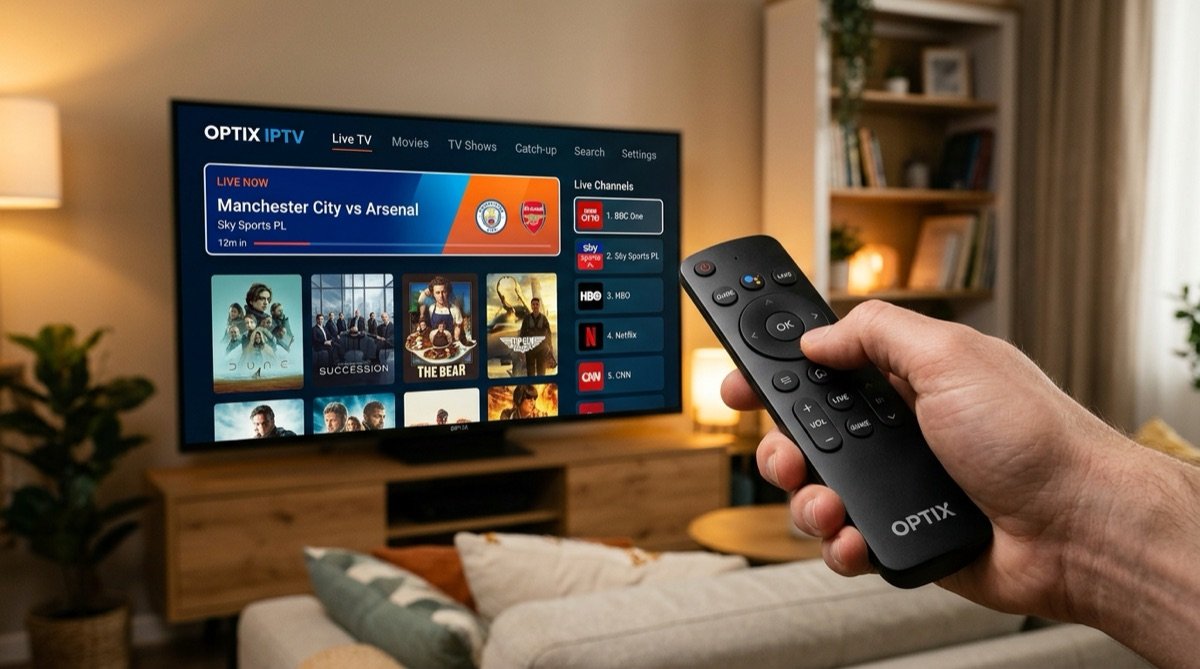
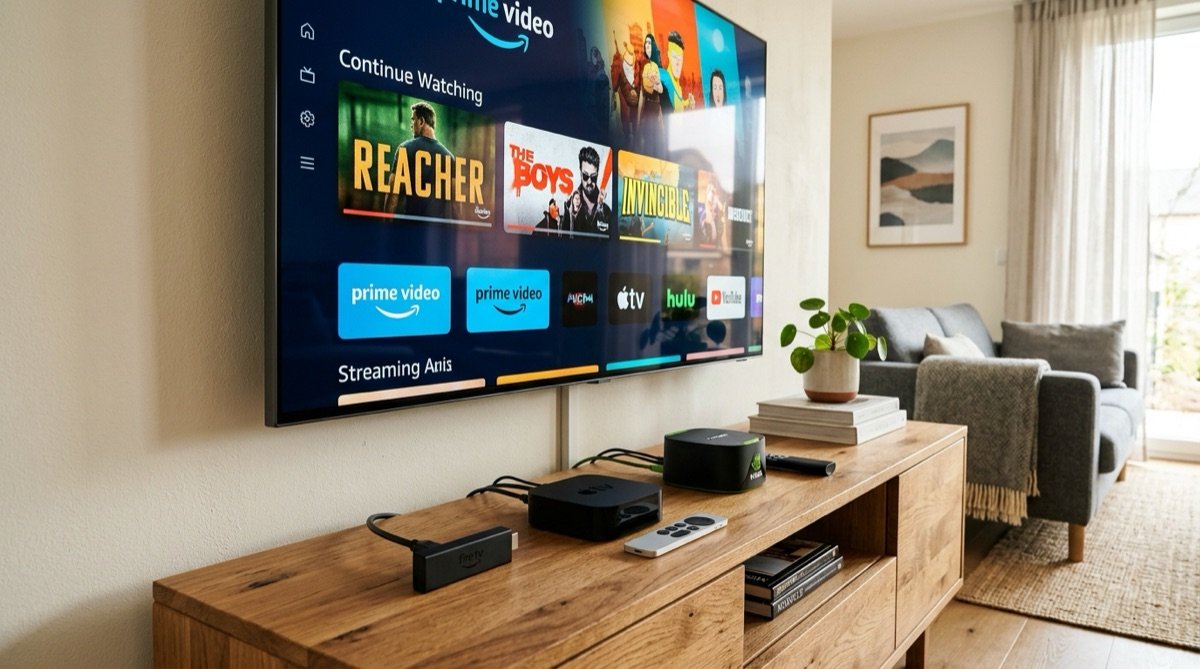
Choosing the right streaming hardware in 2026 is the single most critical decision determining whether your IPTV entertainment experience feels like seamless, ultra-responsive cable television or an exercise in hair-pulling frustration. While an internet connection delivers the raw video packets, it is the physical microchip, RAM buffer, hardware decoder ASIC, and operating system within your streaming device that decode and render high-bitrate 4K 60fps streams without dropping a single frame.
The streaming landscape has undergone a massive technological shift. The rollout of advanced video compression codecs—notably AV1 and HEVC (H.265) 10-bit—alongside HDR10+, Dolby Vision, and Wi-Fi 6E/7 standards, has rendered aging 2019–2021 streaming sticks obsolete. Furthermore, operating system fragmentation between Amazon Fire OS, Google TV / Android TV, Apple tvOS, and proprietary Smart TV platforms (Samsung Tizen, LG webOS) creates radically different user experiences when running IPTV apps like Startup Show or TiviMate.
In this definitive 2026 hardware guide, our video engineering team benchmarks every major device on the market. We evaluate raw CPU/GPU decoding pipelines, memory management, sideloading flexibility, network interfaces, and real-world performance with Apollo Group TV. Whether you are outfitting a high-end home theater or setting up a secondary TV in your guest room, this guide will help you select the exact device that matches your budget and performance requirements.
⚡ Quick Hardware Recommendations at a Glance:
- Best Overall for Power Users & Home Theaters: NVIDIA Shield TV Pro – Unmatched Tegra X1+ AI upscaling, native Gigabit LAN, true Dolby Atmos audio passthrough.
- Best Value & Most Popular: Amazon Fire TV Stick 4K Max (2nd Gen) – Wi-Fi 6E, 16GB storage, smooth Startup Show playback at an unbeatable price point under $60.
- Best Premium User Experience (Zero Ads): Apple TV 4K (3rd Gen) – Blazing fast A15 Bionic chip, tvOS fluid interface, instant channel switching.
- Best Traditional Cable Replacement for Families & Seniors: Formuler Z11 Pro Max – Dedicated numeric remote, hardware PVR recording, proprietary MYTVOnline3 portal.
- Worst Option for Live IPTV: Built-in Smart TV Native Apps (Samsung Tizen / LG webOS) – Underpowered processors, RAM throttling, lack of native player support. Always use an external box!
The IPTV Hardware Architecture: What Actually Matters Inside the Box?
When consumers compare streaming devices, they frequently look at marketing buzzwords like “4K HDR” or “Dolby Audio.” However, live IPTV streaming stresses hardware in ways that on-demand apps like Netflix or Disney+ never do. Here is why hardware specifications matter:
- Hardware Video Decoding ASICs (Application-Specific Integrated Circuits): Video feeds from Apollo Group TV are broadcast using high-efficiency H.264, H.265 (HEVC), and increasingly AV1 containers at 60 frames per second. If a streaming stick lacks dedicated silicon decoders for these profiles, it must decode frames using the CPU (software decoding). This spikes CPU utilization to 100%, causing overheating, stuttering, and frame drops.
- Random Access Memory (RAM) Overhead: Live streams cannot write chunks to disk fast enough without wearing out flash memory. Instead, the player allocates a circular buffer directly in RAM. Devices with only 1 GB or 1.5 GB of RAM suffer from memory pressure as the OS frantically kills background tasks, causing video freezes. Modern live streaming requires a minimum of 2 GB RAM, with 3 GB to 4 GB representing the ideal threshold.
- Thermal Dissipation & Form Factor: Ultra-compact HDMI dongles hanging behind flat-panel TVs have zero active cooling. During 3 hours of continuous 4K sports streaming, internal junction temperatures can surpass 80°C, triggering thermal clock throttling. Larger set-top boxes with aluminum heat sinks or active fans maintain consistent clock speeds indefinitely.
- Network Controller Interface (PHY): Streaming high-bitrate live feeds demands low jitter and zero packet drops. Native Gigabit Ethernet (1000 Mbps) provides the lowest possible latency (<1ms). On wireless devices, having a dual-band or tri-band Wi-Fi 6 / 6E radio enables access to clear 5GHz and 6GHz channels, avoiding RF packet collisions with household smartphones.
- OS Ecosystem & Sideloading Freedom: Because specialized IPTV players (like Startup Show APK, TiviMate, or Smarters) are custom Android applications, an open operating system that permits direct APK installation is an enormous advantage. Closed operating systems (like LG webOS or Samsung Tizen) severely restrict your choice of player software.
Master Comparison Table: 2026 IPTV Streaming Devices
| Device | SoC Processor | RAM | Storage | Network | Sideloading | Price | Overall Score |
|---|---|---|---|---|---|---|---|
| NVIDIA Shield TV Pro | Tegra X1+ (64-bit) | 3 GB DDR4 | 16 GB (Expandable) | Gigabit LAN + Wi-Fi 5 | Complete (Open Android) | $199 | 9.9 / 10 |
| Apple TV 4K (3rd Gen) | Apple A15 Bionic | 4 GB LPDDR4X | 64 GB / 128 GB | Gigabit (128GB) + Wi-Fi 6 | App Store Only (TestFlight) | $129 – $149 | 9.7 / 10 |
| Amazon Fire TV Stick 4K Max (2nd Gen) | MediaTek MT8696T (2.0 GHz) | 2 GB LPDDR4 | 16 GB | Wi-Fi 6E (OTG LAN Opt.) | Full (via Downloader) | $59 | 9.2 / 10 |
| Formuler Z11 Pro Max | Realtek RTD1319C | 4 GB DDR4 | 32 GB | Gigabit LAN + Wi-Fi 6 | Full (Android 11) | $189 | 9.1 / 10 |
| Google TV Streamer 4K (2024/2026) | MediaTek MT8696 | 4 GB DDR4 | 32 GB | Gigabit LAN + Wi-Fi 5 | Full (Android 14 TV) | $99 | 8.9 / 10 |
| Chromecast with Google TV (4K) | Amlogic S905X3 | 2 GB DDR4 | 8 GB (Constrained) | Wi-Fi 5 (Hub needed) | Full (Android TV) | $49 | 7.9 / 10 |
| Roku Ultra (2024/2026) | Realtek Quad-Core | 2 GB | 4 GB | 10/100 LAN + Wi-Fi 6 | None (Closed Roku OS) | $99 | 4.5 / 10 |
| Smart TV Built-in (Samsung/LG) | Proprietary Dual/Quad | 768 MB – 1.5 GB | 4 GB (Shared) | 10/100 LAN or 2.4G Wi-Fi | Zero APK Sideloading | Included | 4.0 / 10 |
In-Depth Device Reviews: Detailed Engineering Analysis
1. Amazon Fire TV Stick 4K Max (2nd Gen) – The King of Value
Best Budget ChoiceThe Amazon Fire TV Stick 4K Max (2nd Generation) is the most widely adopted streaming device for Apollo Group TV subscribers worldwide. Powered by a MediaTek MT8696T quad-core processor running at 2.0 GHz and paired with a 850 MHz GE9215 GPU, this compact HDMI dongle punches significantly above its weight class.
Crucially, Amazon doubled the onboard storage from 8 GB to 16 GB in the 2nd Gen model, solving the notorious “storage space full” warning that plagued older Firesticks. The inclusion of a Wi-Fi 6E (802.11ax) radio allows the stick to connect to the pristine 6 GHz frequency band on compatible routers, eliminating virtually all RF packet contention from neighboring networks.
Sideloading the official Apollo Group TV Startup Show app takes less than two minutes using the Downloader application from the Amazon Appstore. Video playback is hardware-accelerated across HEVC and AV1 streams with crisp 4K 60fps rendering.
✅ Advantages
- Tri-band Wi-Fi 6E delivers ultra-low wireless jitter
- 16 GB storage accommodates multiple IPTV apps and caching
- Hardware decoding for AV1, HEVC, H.264, VP9, and Dolby Vision
- Effortless APK sideloading via Downloader
- Inexpensive and frequently discounted during sales
❌ Disadvantages
- Amazon Fire OS home screen is heavily cluttered with sponsored ads
- Requires an external USB OTG adapter for wired Ethernet
- Runs warm; must be used with the included HDMI extender
Verdict: For 90% of cord-cutters, the Fire TV Stick 4K Max delivers the optimal balance of price, horsepower, and sideloading freedom. Check our step-by-step Firestick Setup Tutorial to get started.
2. NVIDIA Shield TV Pro – The Unmatched Powerhouse for Enthusiasts
Best Overall PerformanceDespite its architecture originating in 2019, the NVIDIA Shield TV Pro remains the undisputed gold standard for live IPTV streaming and home theater enthusiasts in 2026. Built like a mini-console, the Shield Pro is powered by the 64-bit NVIDIA Tegra X1+ processor featuring a 256-core NVIDIA GPU and 3 GB of high-speed DDR4 RAM.
What sets the Shield Pro apart from every other device on earth is its proprietary AI-Enhanced Video Upscaling. When watching live sports broadcast in 720p or 1080p, the onboard neural network analyzes video frames in real time, sharpening player edges, grass textures, and stadium crowd details to near-native 4K quality without adding visual artifacts.
Furthermore, the Shield features native Gigabit Ethernet (1000 Mbps), two full-sized USB 3.0 ports for external hard drives (allowing 24/7 DVR recording), and bitstream audio passthrough for Dolby Atmos, DTS:X, and TrueHD. Because it runs clean Android TV, it supports any APK imaginable without operating system roadblocks.
✅ Advantages
- NVIDIA AI upscaling makes 720p/1080p live sports look stunning on 4K/8K TVs
- Rock-solid Gigabit Ethernet built-in with 0ms packet jitter
- 3 GB DDR4 RAM handles massive 20,000+ channel EPG guides effortlessly
- Full USB 3.0 ports support external SSDs for live IPTV recording
- Zero thermal throttling thanks to internal active whisper-quiet cooling
❌ Disadvantages
- Premium price point ($199.99 MSRP)
- Lacks hardware AV1 decoding (relies on ultra-fast CPU/GPU decoding)
- Larger physical footprint than streaming sticks
Verdict: If you demand the absolute highest picture quality for sports on a 65″+ OLED television, the Shield TV Pro has no equal. Pair it with an Apollo Group TV Premium Subscription for the ultimate sports viewing setup.
3. Apple TV 4K (3rd Gen) – The Smoothest, Ad-Free Premium Experience
Best Premium ExperienceThe Apple TV 4K (3rd Generation) is a computational marvel. Powered by Apple’s 5nm A15 Bionic chip (the same silicon found in iPhone 13 Pro) paired with 4 GB of LPDDR4X RAM, it boasts roughly 5x to 8x the processing power of conventional streaming sticks.
The operating system—tvOS—is celebrated for being completely devoid of aggressive banner advertisements, sponsored content, or bloatware. Navigating menus, switching between apps, and launching live streams happens with butter-smooth 60fps animations. Channel zapping speeds in compatible IPTV apps are near-instantaneous (under 300ms).
The primary caveat with Apple TV is that tvOS does not allow open APK sideloading. However, you can download excellent IPTV players directly from the official tvOS App Store (such as TiviMax, IPTVX, GSE Smart IPTV, or Smarters Pro), or utilize Apollo Group TV’s official Startup Show app via Apple TestFlight.
✅ Advantages
- Massive computing power (A15 Bionic) makes UI navigation lightning-fast
- Clean, ad-free interface with unmatched build quality and Siri Remote
- Flawless Auto Frame Rate (AFR) matching eliminates motion judder
- Native Gigabit Ethernet on the 128GB Wi-Fi + Ethernet model
- Seamless integration with AirPods, HomePods, and iOS ecosystem
❌ Disadvantages
- No direct Android APK sideloading; reliant on App Store or TestFlight
- Higher price point ($129 for 64GB, $149 for 128GB Gigabit LAN)
- TiviMate is not natively available on tvOS (must use TiviMax or IPTVX)
Verdict: For iPhone and Mac users who value speed, privacy, and an elegant interface, the Apple TV 4K 128GB is an extraordinary investment.
4. Formuler Z11 Pro Max – The Dedicated Cable Replacement
Best Traditional TV FeelUnlike general streaming sticks that treat IPTV as a third-party add-on app, dedicated set-top boxes from Formuler (such as the Z11 Pro Max) are engineered from the chassis up solely for live TV consumption.
The standout feature is Formuler’s proprietary MYTVOnline3 (MOL3) application. MOL3 is universally regarded as one of the most intuitive IPTV interfaces ever conceived, offering universal search across multiple playlists, single-screen picture-in-picture, background recording, and full 7-day electronic program guide (EPG) timeshifting.
Additionally, the Z11 Pro Max ships with a full-sized IR/Bluetooth hybrid remote control complete with traditional numeric channel keys (0–9), channel up/down rockers, guide, and info buttons. For older family members who are intimidated by modern smartphone-style streaming interfaces, this device restores the exact tactile feel of traditional cable television.
✅ Advantages
- Proprietary MYTVOnline3 client is unmatched for ease of use
- Full numeric keypad remote allows direct channel number entry
- Hardware AV1 decoding powered by Realtek RTD1319C chipset
- Gigabit LAN, MicroSD card slot, and 4 GB RAM
- Seamless background PVR recording to USB storage
❌ Disadvantages
- Expensive ($180–$200)
- Not certified for Netflix 4K (locks Netflix to 540p SDR)
- Best used strictly as a dedicated IPTV device rather than a general app streamer
Verdict: The absolute best option for cord-cutters transitioning parents or grandparents away from expensive $150/month cable subscriptions.
5. Google TV Streamer 4K & Chromecast with Google TV
Best Pure Android ExperienceGoogle overhauled its streaming hardware lineup with the release of the Google TV Streamer 4K, replacing the older dongle-style Chromecast. Designed as an attractive tabletop set-top console, it includes 32 GB of onboard storage, 4 GB of RAM, a built-in Gigabit Ethernet port, and Thread/Matter smart home hub integration.
Running official Android 14 TV, the Google TV Streamer offers full native access to the Google Play Store, where you can download TiviMate, IPTV Smarters, and VLC natively. Sideloading the Apollo Group TV Startup Show APK is simple through file manager apps or wireless ADB.
The older Chromecast with Google TV (4K) dongle remains available at budget prices ($40–$50). However, its meager 8 GB storage (leaving under 4 GB accessible to users) quickly fills up, making the newer Streamer 4K a vastly superior long-term choice.
✅ Advantages
- 32 GB storage and 4 GB RAM ensure smooth multitasking
- Integrated Gigabit Ethernet port eliminates wireless drops
- Native Android TV platform with open APK sideloading
- Clean integration with Google Assistant and YouTube ecosystem
❌ Disadvantages
- $99 price tag places it between the Firestick and Apple TV
- Google TV launcher includes prominent movie recommendations
Verdict: An outstanding all-around device for Android enthusiasts wanting a tabletop box with native Ethernet without paying $200 for an NVIDIA Shield.
6. Built-in Smart TV Native Apps (Samsung Tizen, LG webOS)
Not RecommendedA question our technical support team answers every single day is: “Can I just install an IPTV app directly on my new Samsung QLED or LG OLED television?”
While apps like Smart IPTV, Nanomid, or IBO Player exist in Samsung and LG app stores, our network engineers strongly advise against relying on native Smart TV operating systems for live IPTV streaming.
Television manufacturers prioritize picture panel technology, not computing silicon. Even a $2,500 flagship television often incorporates a low-tier dual-core processor with less than 1 GB of system RAM allocated to third-party apps. As a result:
- Aggressive Memory Purging: Smart TV operating systems kill background apps the second memory spikes, causing IPTV apps to crash mid-broadcast.
- Sluggish EPG Loading: Loading a 20,000-channel guide from Apollo Group TV can take minutes on a TV processor, compared to 3 seconds on an Apple TV or Firestick.
- No Startup Show APK Support: Samsung Tizen and LG webOS do not use Android; they cannot run APK files, locking you out of Apollo Group TV’s optimized proprietary client.
- Poor Wi-Fi & Ethernet Chips: Most smart TVs only feature 10/100 Mbps Ethernet ports and budget Wi-Fi antennas with high packet jitter.
Verdict: Treat your Smart TV as a gorgeous display panel, and delegate streaming computation to an external $50–$150 streaming box.
Crucial Hardware Features Buyer’s Checklist for 2026
Before purchasing your next streaming device for Apollo Group TV, ensure it satisfies these technical engineering benchmarks:
| Feature | Minimum Requirement | Ideal 2026 Standard | Why It Matters |
|---|---|---|---|
| Video Codec Support | H.264 & H.265 (HEVC) | HEVC 10-bit + AV1 Hardware Decode | Ensures compatibility with next-gen 4K sports compression |
| System RAM | 2 GB DDR3/DDR4 | 3 GB to 4 GB DDR4 | Prevents buffer crashes and app freezes during EPG updates |
| Internal Flash Storage | 8 GB | 16 GB to 32 GB | Prevents “Out of Storage” errors from app caching and recording |
| Network Connectivity | Dual-Band 5GHz Wi-Fi (802.11ac) | Wi-Fi 6E (6GHz) or Gigabit LAN (1000M) | Eliminates RF packet interference and maintains zero jitter |
| Auto Frame Rate (AFR) | Manual switching | System-level AFR (50Hz / 59.94Hz / 60Hz) | Prevents micro-stutters when watching European soccer (50Hz) in the US (60Hz) |
🛡️ Hardware Engineering Pro Tips for Peak Performance
- The Wall Outlet Power Rule: Never power your streaming stick via the USB port on your television. TV USB ports deliver 5V at only 0.5A to 0.9A. The Firestick 4K Max and Chromecast require up to 2.0A during heavy 4K decoding bursts. Underpowering your device causes voltage drops, random system reboots, and playback freezes. Always use the included wall power adapter.
- Prevent Motion Judder with Frame Rate Matching: North American TV broadcasts run at 60 Hz (59.94 fps), while European sports feeds (Sky Sports, TNT Sports, Premier League) broadcast at 50 Hz. If your streaming device is locked to 60 Hz, it must duplicate every 5th frame to compensate, causing unnatural motion judder. Enable “Match Original Frame Rate” in your Fire TV or Apple TV display settings for buttery-smooth panning shots.
- Keep Your Device Cool: If your streaming stick is hidden behind a wall-mounted TV, use a 6-inch or 1-foot flexible HDMI extension cord to drop the stick into open air below the television chassis. This single step can drop operating temperatures by 15°C and prevent CPU thermal throttling.
Device Compatibility with Apollo Group TV Software
Subscribing to Apollo Group TV gives you access to a rich selection of player options across all your devices:
- Startup Show (Official Apollo App): Available for direct download on Android, Fire TV, iOS, and tvOS. It offers automated server synchronization, cloud-managed favorites, and integrated VOD search. See our Setup Guide for installation links.
- TiviMate IPTV Player (Android TV / Firestick / Shield): Widely regarded as the most advanced third-party IPTV player for power users, featuring multi-view (watch 4 games at once), advanced recording, and customizable EPG layouts.
- IPTVX & TiviMax (Apple TV tvOS): Beautiful native Apple TV clients that transform your Apollo Group TV playlist into a Netflix-style UI with automatic subtitle fetching and Dolby Vision playback.
- Web Player & PC/Mac: Stream directly in Google Chrome, Safari, or VLC using our dedicated web portal or M3U link on any computer.
Ready to explore our extensive entertainment lineup? View the complete Apollo Group TV Channel List & VOD Catalog featuring 20,000+ live networks and 50,000+ on-demand movies.
—Frequently Asked Questions (FAQ)
Q1: Can I use one Apollo Group TV subscription on multiple different devices?
Yes! Apollo Group TV supports multi-room and multi-device households. Depending on your subscription plan, you can stream simultaneously on up to 5 concurrent connections across any combination of devices—for instance, a Firestick in the living room, an Apple TV in the bedroom, and an iPad while traveling. Browse our Subscription Plans to choose the connection tier that fits your household.
Q2: Which streaming device is the easiest to set up for elderly parents or non-technical users?
For non-technical users, we recommend either the Formuler Z11 Pro Max or the Amazon Fire TV Stick 4K Max. The Formuler includes a traditional remote control with numbered keys, allowing users to enter channel numbers directly (e.g., pressing “2-0-1” for ESPN). The Fire TV Stick provides an intuitive interface, and once our Startup Show app is pinned to the favorites bar, launching live television requires just one click of the remote.
Q3: Why shouldn’t I just use the built-in web browser or native app on my Smart TV?
Smart TV processors are notoriously underpowered and lack sufficient RAM to cache high-bitrate live video streams. Native TV browsers cannot handle continuous MPEG-TS/HLS stream buffers, resulting in memory crashes after 20–30 minutes of playback. An external streaming stick (such as a Firestick or Apple TV) has dedicated hardware decoders, significantly more RAM, and specialized operating systems built specifically for video streaming.
Q4: Is the NVIDIA Shield TV Pro still worth buying in 2026?
Absolutely. Despite being released earlier, the NVIDIA Shield TV Pro’s Tegra X1+ processor and 256-core GPU remain vastly more capable than the cheap quad-core chips used in modern budget streaming sticks. Its AI-enhanced upscaling technology has no equivalent on the market, turning 720p and 1080p live sports feeds into razor-sharp 4K imagery. If you have a high-end 4K OLED or home theater audio system, the Shield Pro is worth every penny.
Q5: Do I need a 4K television to use a 4K streaming device?
No. A 4K streaming device (like the Fire TV Stick 4K Max or Apple TV 4K) works perfectly on any standard 1080p or 720p HD television with an HDMI port. In fact, purchasing the 4K version of a streaming stick is highly recommended even for 1080p TVs because 4K models feature faster processors, more RAM, and better Wi-Fi radios than budget “Lite” or “HD-only” models, ensuring a much smoother, buffer-free streaming experience.
Ready to Unleash 4K Live Streaming on Your Favorite Device?
Get access to over 20,000+ premium live channels, regional sports networks, PPV fight events, and 50,000+ movies on demand. Compatible with Firestick, Apple TV, Android, NVIDIA Shield, and Smart TVs.